

Trusted Contacts
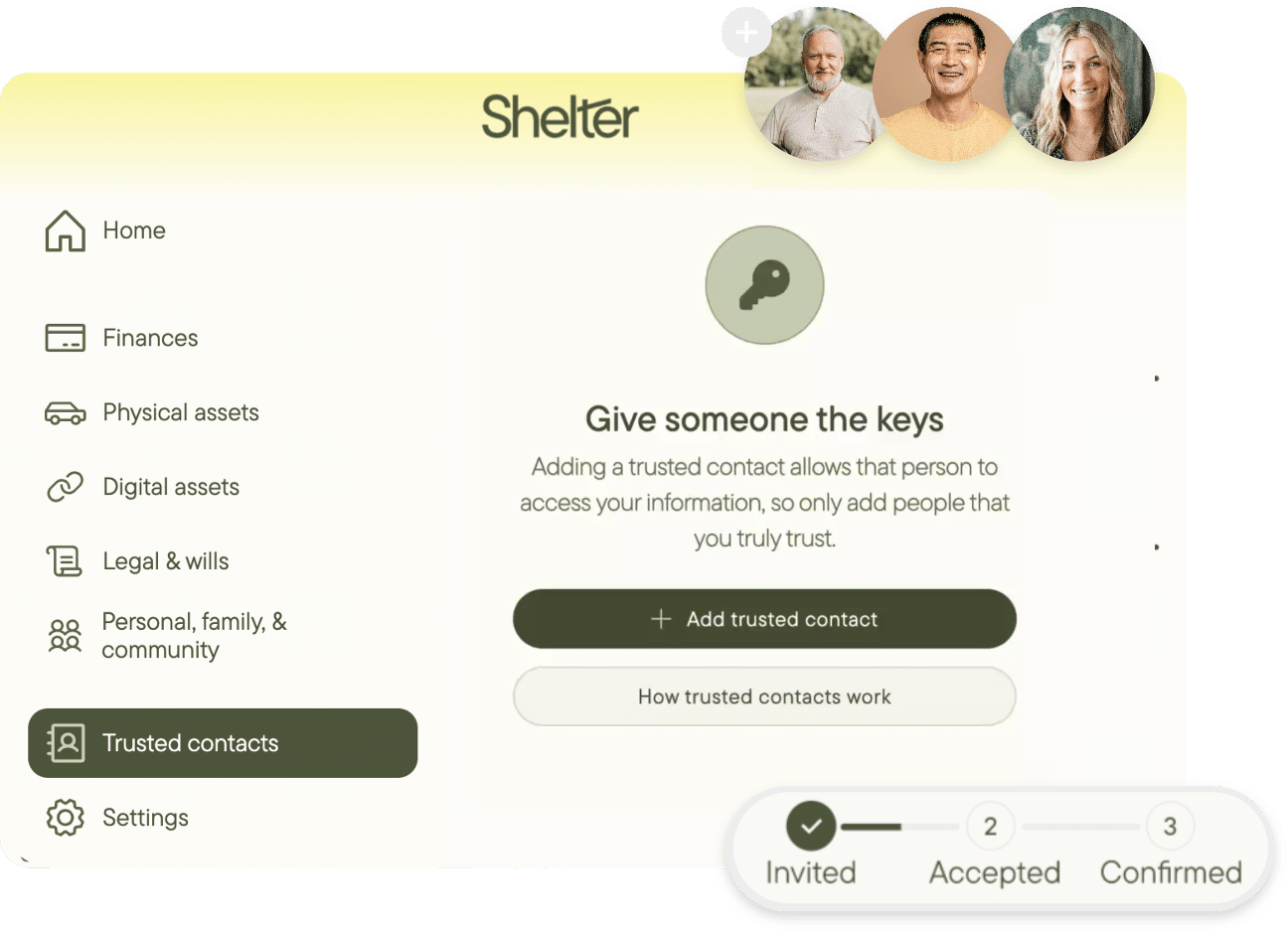
Share access to your Shelter with your loved ones so they’ll have everything they need.


Setting up your Trusted Contacts is simple
Invite your spouse, children, or other loved ones to have view-only access to your Shelter. When you die, they’ll have easy access to all of your accounts and assets to administer your estate.
Two ways to allow access
Your Trusted Contacts can either have immediate access to view your Shelter, or a timed access that allows you to set when they can view it.

Immediate Access
When you give your Trusted Contacts immediate access, they will be able to see everything in your Shelter as soon as you confirm them.
- Can view everything in your Shelter as soon as they are confirmed
- Have immediate access to your Shelter
- Must accept your invitation to be your Trusted Contact

Timed Access
Allows your Trusted Contacts to access your Shelter only if something happens to you. They can request access at any time, but your vault remains locked until a waiting period that you set has passed and you haven’t responded.
- Can request access to view your Shelter whenever needed
- Starts the waiting period once they submit a request, giving you time to respond
- Grants automatic access only if you do not respond within your set number of days (such as in the event of death or incapacitation)
When you invite a Trusted Contact:
- You can set when they have access to your Shelter: either once they are confirmed or after a time period you set
- They must accept the invitation to be your Trusted Contact
- You must provide a final confirmation to make them a Trusted Contact
Securing Your Trusted Contacts
Your Trusted Contacts have view-only access to your Shelter, and follow the same security protocols as you. Their master password is also never stored on our servers.
If you invite your Trusted Contact to have immediate access, then they can view your Shelter as soon as they are confirmed.
If you set a time period for their access, then they must request access to your Shelter. If you do not respond to their request within the time period you set – in all likelihood, because you have died or are incapacitated – they are given access to your Shelter.

Save your family months and even years of stress with Shelter.
Don’t leave your loved ones in the dark. When you die, your family will need to take care of what you’ve left behind – make life easier for them.
Build Your Shelter Today
Bring comfort and peace of mind to your loved ones by giving them everything they’ll need to know.